
Showing the problem
How do you show a coding agent a bug instead of describing it?
The short answer
Show the symptom, the shortest sequence that triggers it, and what you expected instead. Where capture is available in your Asyncly build, review the recording before attaching it to the intended thread. A recording gives the agent evidence to investigate; it does not prove the cause or authorize a change outside the task’s scope.
Why it happens
Words are a lossy format for a visual bug.
A layout that jumps, a control that flickers or a value that changes after a click needs enough context to reproduce the symptom.
The description keeps missing
You write what you saw, the agent changes something adjacent, and the next reply starts with another attempt at the same description.
The steps matter and get lost
The bug appears only after a particular click order. That order lives in your head, not in the request you sent.
The evidence may be incomplete
A written summary can omit the sequence or timing that matters. A permitted screenshot, recording or local reproduction can help; available tools and permissions vary.
How to handle it
Make the bug reproducible.
Example: a fictional storefront card moves after a billing toggle. Treat the recording as input to an investigation, not as a completed diagnosis.
Prepare a small reproduction
Use non-sensitive test data. Record the starting page, viewport and click order, and describe the expected result. Avoid capturing unrelated windows, credentials or customer material.
Capture and review the symptom
Record the shortest useful sequence. If your build offers commentary or interaction context, inspect that material too. Stop and review before submitting it to a provider-backed task.
Name the work and its limits
Choose the Project, thread and permitted Sources. Ask for an explanation and a bounded fix, with the reproduction and acceptance checks included. Do not assume the recording grants repository or browser access.
Validate the change independently
Replay the original steps against the changed build and inspect the diff. For a visual change, check the relevant viewport; use motion evidence when timing or animation is the bug.
View illustrations
Illustrative workflow screens
Retained renderer captures with fictional data, not a recorded product trial. Read the guidance and availability limits alongside them; interface details can vary by build.
- 1
Set up the capture
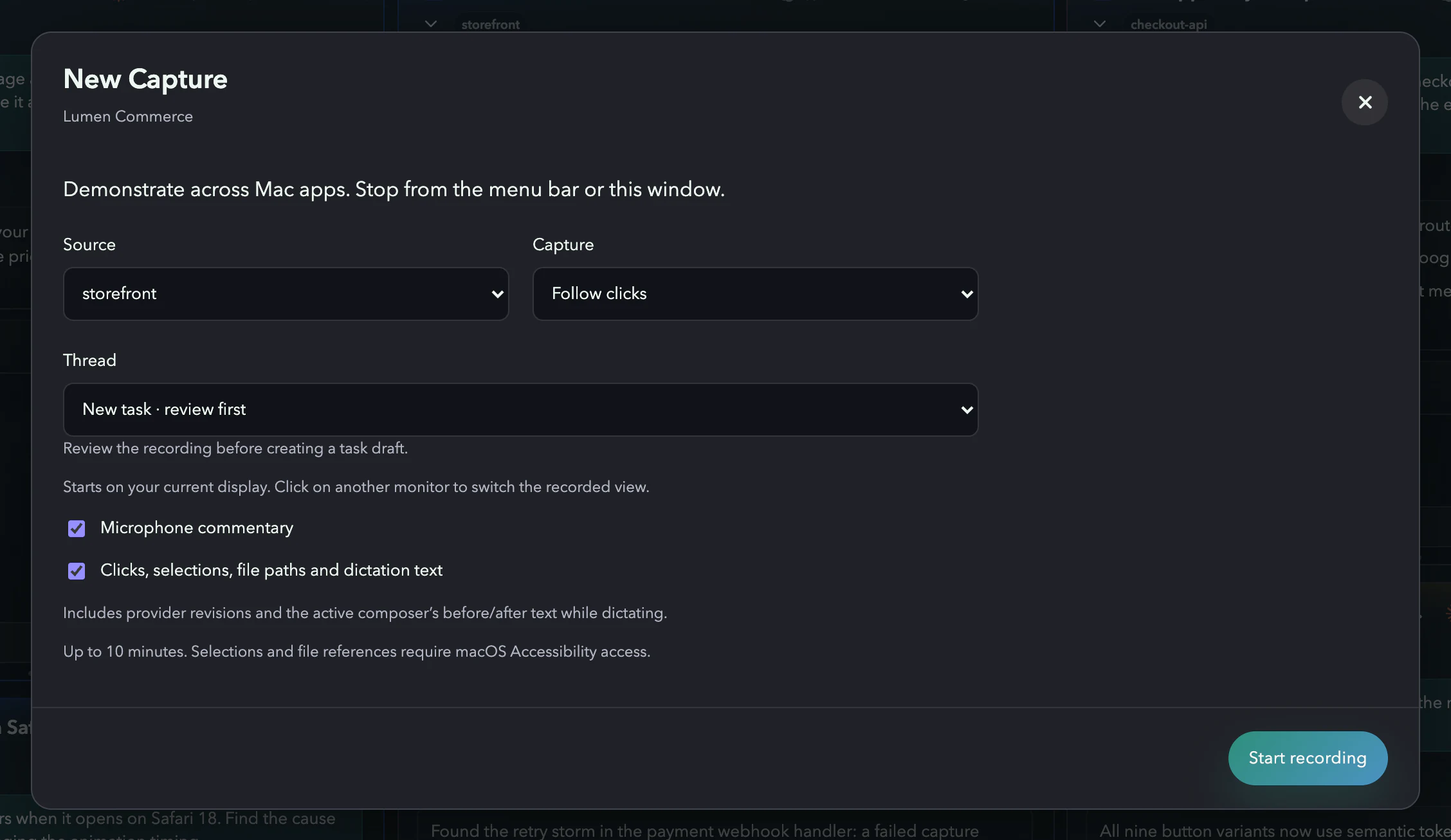
Illustration: Source, capture mode and destination thread, with commentary and interaction metadata switched on.
- 2
Review what it caught
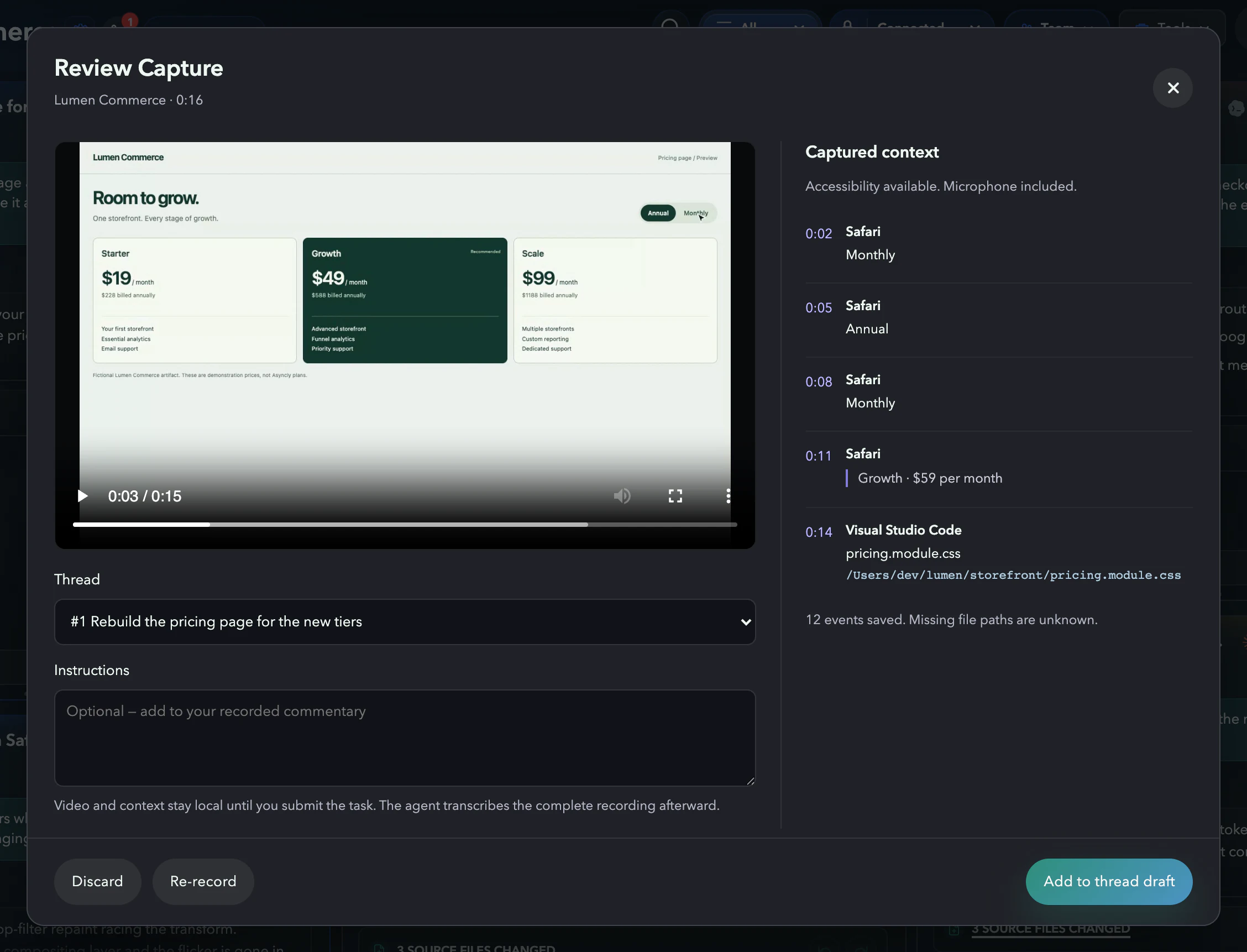
Illustration: The recording beside its captured context: two billing toggles, the price you selected, and the stylesheet you opened.
Requirements and limits
What you need
- An installed build that supports the capture workflow and the required OS permissions.
- A thread with access to the intended material and an available provider.
- A safe reproduction using material you are allowed to submit.
Worth knowing
- The retained capture implementation record was reviewed on October 7, 2026; it is source evidence, not a fresh native recording or release qualification.
- Permission prompts, capture sources and media processing can vary by OS and build. No universal duration or all-display support is promised here.
- Selected provider processing and enabled sharing have their own data boundaries. Review the material before submission.
- The fictional result frame from the old demo is not evidence that an agent fixed this bug; it is intentionally not used here.
Try it on your own work